Stay tuned for a video tutorial on making postcards. THANKS for all the cards! We have received over 500 already, from almost every state and many countries.
Showing posts with label cloth paper scissors. Show all posts
Saturday, February 9, 2013
Cloth Paper Scissors Magazine
Cloth Paper Scissors Magazine, published by Interweave Press, has included our Postcard Project in their "Spread the Love with Art and Three Great Causes". Check it out!
Stay tuned for a video tutorial on making postcards. THANKS for all the cards! We have received over 500 already, from almost every state and many countries.
Saturday, March 10, 2012
Studio "Orgainization"
I agreed to have my studio included in this summer's issue of Studios Magazine, thinking that it would be a good excuse to tidy up and give my lack of organizational skills some serious thought. Writing the article and having my studio photographed achieved both goals. Taking a hard look at my relationship to organization and tidiness revealed the following insights:
- First of all, it didn't take a monumental effort to tidy up, because I have made monumental efforts to create homes for everything in my studio. Monumental because organizing does not come easily to me. Having a home for everything, even if I don't put things away, is immensely soothing. Clutter doesn't bother me so much if I know I can put things away when necessary. My efforts in recent years have really paid off.
- I really can come up with organizational systems, like the wall I build on the back edge of my worktable you see above, if I put my mind to it and analyze the problem. In this case, the problem was: everything gets buried on top of the worktable, and I can see it. I need everything in front of me where I can find it and put it away. Solution: put everything in front of me.
- I have made some organizational units modular, so I can take advantage of awkward spaces and move them around easily. My bookshelves consist of cubes built of pine. I have them stacked at the end of my east worktable, but they also fit under the gable roof in a tight space behind the new wall (see the first post on Working Large).
I elaborate on all of this in the article in Studios Magazine, so I'll keep this short. My point here is that I discovered I'm not as bad as I'd thought I was. I'm sure an organized person could come up with more efficient solutions to my studio space, but I have come up with workable solutions.
Here are a few more shots of my "Working Large" space:
The front gable wall:
The New Wall, where I hang works-in-progress:
My makeshift rolling paint cart:
My latest work-in-progress:
Wednesday, October 12, 2011
Your Dream Studio
I just got Cloth Paper Scissors e-newsletter offering a new publication called "Inside the Creative Studio: Inspiration and Ideas for Your Art and Craft Space". The e-newsletter asks: What makes a Dream Studio? My answer: Make it work for YOU!

I have seen some artists' studios that look just like any dream studio in a magazine, artists who are both organized AND productive and creative, and sometimes I long to be one of those artists. HOWEVER, I am not one of those. And for those of you who are a little more like me (not totally disorganized, but definitely not a neatnik) I am writing this post to suggest that you do not need your "Dream Studio" to make art. You can get some very useful ideas from CPS's fabulous publications on studios, and Inside the Creative Studio sounds like a great resource (see Sue Bleiweiss's book review). I have gotten great tips myself. But don't let gorgeous photos of beautiful studios discourage you from making art on your kitchen table, your corner of the bedroom, your studio with stuff all over the place (that's me), your dingy basement, or the living room floor. You are who you are. Organize to suit your own style of working, your own level of sustainable organization.


I have seen some artists' studios that look just like any dream studio in a magazine, artists who are both organized AND productive and creative, and sometimes I long to be one of those artists. HOWEVER, I am not one of those. And for those of you who are a little more like me (not totally disorganized, but definitely not a neatnik) I am writing this post to suggest that you do not need your "Dream Studio" to make art. You can get some very useful ideas from CPS's fabulous publications on studios, and Inside the Creative Studio sounds like a great resource (see Sue Bleiweiss's book review). I have gotten great tips myself. But don't let gorgeous photos of beautiful studios discourage you from making art on your kitchen table, your corner of the bedroom, your studio with stuff all over the place (that's me), your dingy basement, or the living room floor. You are who you are. Organize to suit your own style of working, your own level of sustainable organization.
As good as it gets for me (photo-shoot ready):

Monday, May 23, 2011
Digital Art Tutorials
Cloth Paper Scissors Magazine has just put out a free e-book of four digital art tutorials, one of which is mine! I'm thrilled to pieces to be included in this e-publication, and it is FREE! You can download it HERE. In my tutorial I discuss how to alter images in Photoshop and print them out on fabric to use in fabric/paper collage. Here are a few pieces in progress using these techniques. The finished pieces are in the e-book.
"Forest Dream"
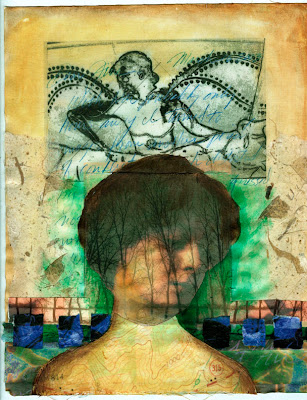
"Pedestal"
I want to show you in a little more detail how I got some of these layered images in Photoshop.
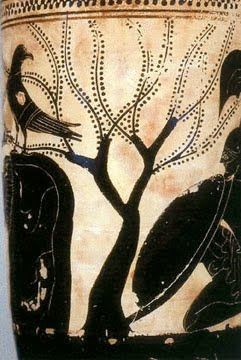
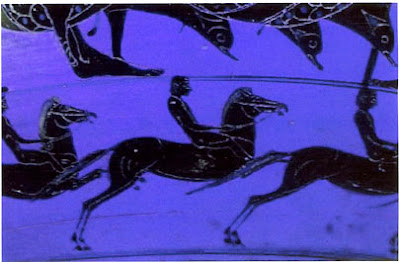
First, I scanned some images of these Greek vase paintings, and made them the same width, 5". (In this post they don't look the same width, but trust me).
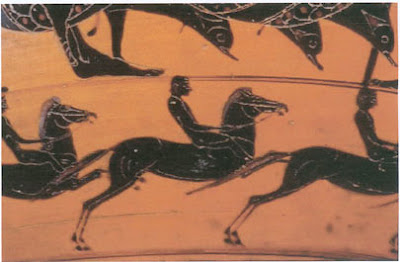
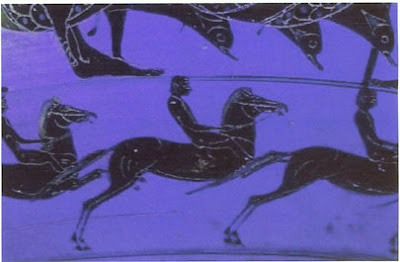
In Image 1, I went to Image > Adjustments > Hue / Saturation and played with the hue slider to change the color:
Then I went to Levels (Image > Adjustments > Levels) and used the left and right sliders to bring up the highlights and darken the darks:
On Image 2, I simply used Levels to brighten the lights and darken the darks:
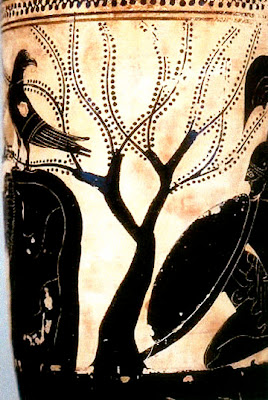
Now, here comes the fun part. Using the Move tool, I moved Image 1 onto Image 2:
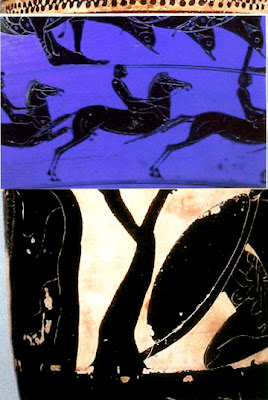
This creates a layer over a background. In the layers panel, I double click on the layer (Image 1) and that opens the Layer Styles box. I play with the Opacity slider to make the image more transparent so you can see Image 2 underneath Image 1.

I then cropped the image using the crop tool:
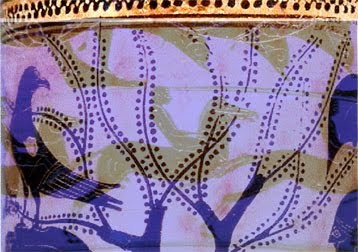
Then I flattened the image, Layer > Flatten.
To selectively change the color I went to Image > Adjustments > Replace Color, which opens a dialog box like this:
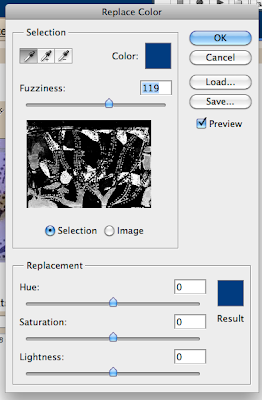
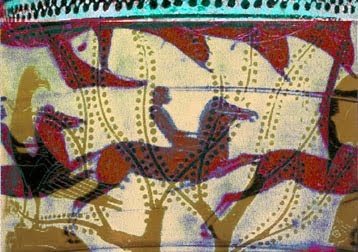
Click on the color in the image that you want to replace (I clicked the gray of the horses), then play with the hue, saturation, and lightness sliders to change that color. The Fuzziness slider determines how broadly you want to define your selected color, and that color will show up as white in box that shows the image. Here is my result:

Then, just for fun, I played with the Hue / Saturation tool again. Image > Adjustments > Hue/Saturation. Here is another altered version of the image:
I know this tutorial requires some basic knowledge of Photoshop, so I hope there are enough of you out there who can take advantage of it. Do get the free e-booklet from Cloth Paper Scissors! There are three other tutorials with fabulous art.
"Forest Dream"

"Pedestal"
I want to show you in a little more detail how I got some of these layered images in Photoshop.First, I scanned some images of these Greek vase paintings, and made them the same width, 5". (In this post they don't look the same width, but trust me).


In Image 1, I went to Image > Adjustments > Hue / Saturation and played with the hue slider to change the color:

Then I went to Levels (Image > Adjustments > Levels) and used the left and right sliders to bring up the highlights and darken the darks:

On Image 2, I simply used Levels to brighten the lights and darken the darks:

Now, here comes the fun part. Using the Move tool, I moved Image 1 onto Image 2:

This creates a layer over a background. In the layers panel, I double click on the layer (Image 1) and that opens the Layer Styles box. I play with the Opacity slider to make the image more transparent so you can see Image 2 underneath Image 1.

I then cropped the image using the crop tool:
Then I flattened the image, Layer > Flatten.To selectively change the color I went to Image > Adjustments > Replace Color, which opens a dialog box like this:

Click on the color in the image that you want to replace (I clicked the gray of the horses), then play with the hue, saturation, and lightness sliders to change that color. The Fuzziness slider determines how broadly you want to define your selected color, and that color will show up as white in box that shows the image. Here is my result:

Then, just for fun, I played with the Hue / Saturation tool again. Image > Adjustments > Hue/Saturation. Here is another altered version of the image:
I know this tutorial requires some basic knowledge of Photoshop, so I hope there are enough of you out there who can take advantage of it. Do get the free e-booklet from Cloth Paper Scissors! There are three other tutorials with fabulous art.
Subscribe to:
Posts (Atom)


